
Some links on this page are affiliate links: if you buy through them we may earn a commission, at no extra cost to you.
To fix a Fi collar that is not charging, first identify the tracker generation: Series 2, 3, and 3+ use a compatible Fi Base, while Fi Mini and Fi Ultra use USB-C. Then correct the docking position, test the outlet, cable, and 5V/1A-or-higher adapter, and reset the matching base or tracker only if those checks pass.
The most common serious mistake is using the wrong generation of charger. Fi says a Series 2 tracker cannot charge on a Series 3 Base, while Series 3 and Series 3+ trackers can use a Series 3 Base. The steps below separate compatibility, power, light, reset, and warranty decisions so you do not replace a working tracker unnecessarily.
As an Amazon Associate I earn from qualifying purchases.
Quick wins for a faster PC:
Clear out junk files and repair common Windows errorsFree Scan →Fix the driver behind crashes, sound loss and screen glitchesFind Drivers →Key takeaways
- Fi Series 2, Series 3, and Series 3+ trackers charge on a compatible Fi Base, while Fi Mini and Fi Ultra charge through USB-C and cannot charge on a Fi Base.
- A Series tracker must sit in the recessed charging area on the top of the powered base, with the correct side facing down; the Fi logo is on the bottom.
- On a Series 3 Base, a static blue base light means the tracker is docked and charging, a pulsing blue tracker light means charging is active, and a solid blue tracker light means the tracker is fully charged.
- Fi specifies a 5V USB adapter rated at least 1A, or 5W or more, and a standard USB Type-A to micro-USB cable for powering the base.
- Reset the base or tracker only after checking the outlet, adapter, cable, and docking position; Series 3 and Series 3+ resets use the button on the base.
- A Fi product purchased from Fi or an authorized reseller on or after September 29, 2025 may qualify for Fi’s one-year hardware warranty, subject to its conditions and exclusions.
Why is my Fi collar not charging?
A Fi collar that is not charging usually has one of four causes: the tracker is being used with the wrong charging method or base generation, the tracker is not seated correctly, the outlet/cable/adapter is not supplying power, or the base or tracker needs a reset. Identify the Fi device first, then test the charging path before buying a replacement.
Which Fi charger does my tracker use?
The correct charger depends on the Fi generation. Fi Series 2, Series 3, and Series 3+ trackers use a compatible Fi Base; Fi Mini and Fi Ultra use USB-C and cannot charge on a Fi Base, according to Fi’s charging instructions.
Popular on Amazon

- Charges your Fi collar: Set your Fi Series 3+ or Series 3 collar on the base and the collar light pulses blue while it charges, then stops pulsing when fully charged
- Home base that saves battery: When your dog is in range, the collar connects to the base over Bluetooth and reports its location over your Wi-Fi. This uses much less power than the GPS and cellular tracking it relies on away from home
- Add a second location: Your Fi Series 3+ collar comes with one base. Add another at the office, an RV, a vacation home or a co-parent's house so your dog has a home base away from home
- Up to 150 ft range: Reaches a 150 ft radius with a clear line of sight, enough for most homes. Place it where your dog spends the most time
- In the box: Fi Base and USB charging cable. Wall adapter not included. Collar and Fi Membership sold separately
| Fi device | Charging method | Compatibility warning |
|---|---|---|
| Series 1 | Use the Series 1-specific Fi instructions and base procedure. | Do not assume a Series 2 or Series 3 base is compatible. |
| Series 2 | Compatible Fi Base | A Series 2 tracker cannot charge on a Series 3 Base. |
| Series 3 | Fi Series 3 Base | A Series 3 Base supports Series 3 trackers. |
| Series 3+ | Fi Series 3 Base | A Series 3 Base supports Series 3+ trackers. |
| Fi Mini | USB-C charging cable | Fi Mini cannot charge on a Fi Base. |
| Fi Ultra | USB-C charging cable | Fi Ultra cannot charge on a Fi Base. |
The most important compatibility trap is the difference between Series 2 and Series 3. Fi states that a Series 3 Base supports Series 3 and Series 3+ trackers, but a Series 2 tracker cannot charge on a Series 3 Base. Confirm the tracker generation before treating a base as defective or ordering a Fi charging base.
How do I place a Series tracker on the Fi Base?
Remove the tracker from the collar if necessary and place it directly into the recessed charging area on the top of the powered Fi Base. The tracker must sit in that recess to charge or activate. The Fi logo is on the bottom of the base, so placing the tracker on the wrong side prevents proper docking.
Free tools Windows power users keep installed
One-click scans. No signup required.
- Connect the base to power.
- Place the Series tracker in the recessed area on top of the base.
- Make sure the tracker is oriented to match the charging contacts and is sitting flat in the recess.
- Wait for the base and tracker lights before moving to a reset.
Do not use a generic wireless charger, smartwatch dock, or unsupported charging puck. Fi’s published charging methods are a compatible Fi Base for the applicable Series trackers and USB-C for Fi Mini and Fi Ultra.
What do the Fi charging lights mean?
For a Series 3 Base, a static blue base light indicates that the tracker is docked and charging. The tracker light should pulse blue while charging and turn solid blue when the tracker is fully charged, according to Fi’s official charging guidance.
| Light or condition | Meaning or next action |
|---|---|
| Static blue base light | The tracker is docked and charging on a Series 3 Base. |
| Pulsing blue tracker light | The tracker is actively charging. |
| Solid blue tracker light | The tracker is fully charged. |
| Red, yellow, or multicolor flashing | Fi identifies the condition as requiring troubleshooting. |
| Continual green flashing after startup | Follow Fi’s base troubleshooting steps rather than repeatedly redocking. |
| No base light when the tracker is docked | Check the outlet, cable, adapter, and connections. |
A fully charged tracker may not keep showing a light while it is resting on the base. The absence of a light after a full charge is therefore not, by itself, proof that the tracker has failed. Fi’s charging guidance also says a tracker typically takes around 3 hours from 0% to 100%; the exact time can vary with the device’s state and power setup.
Also popular on Amazon

- [Precise Fit] Charging base compatible with Fi Series 3 GPS dog smart collar.comes with the required USB-C cable and 5V safety charger.Just unbox and start charging(charging only; bluetooth not supported
- [Charging Only Function] This product is only for charging for Fi pet tracker collar, NO Bluetooth connection function , please note the functional difference from the original base before purchase
- [Powerful Magnetic Suction] Tailored specifically for the Dog Tracker, the magnetic force and base groove perfectly match the device's body. Simply bring the dog tracker near the base for automatic attachment and precise alignment. It stays securely attached during charging, preventing detachment or displacement to ensure stable charging throughout
- [Sturdy Anti-Slip] The base features a non-slip, stable design that stays firmly in place even on smooth surfaces like glass or wood. Compact and portable, it easily fits into pet travel bags. Whether camping, traveling, or boarding, it keeps your tracking device charged and safeguards your pet's safety
- [New Design] The unique vertical charging structure is easier to position than the original flat base, preventing slippage and displacement. It saves desk space and keeps the charging area tidy
How do I test the Fi Base power supply?
Test the outlet, adapter, and cable separately before concluding that the Fi Base or tracker is broken. Fi says the base can use any standard USB Type-A to micro-USB cable and specifies a USB adapter rated at 5V and at least 1A, equivalent to 5W or more, in its charging documentation.
- Plug another electronic device into the same outlet. If that device also fails, try a working outlet.
- Confirm that the cable is firmly connected to both the adapter and the base.
- Inspect both ends of the cable for looseness, visible damage, bent connectors, or contamination.
- Try a known-good USB Type-A to micro-USB cable.
- Try a known-good adapter rated for 5V and at least 1A, or 5W or more.
- Reconnect the base and dock the tracker again.
A higher-wattage adapter is not a repair for a defective base or tracker. A replacement adapter is appropriate only when it meets Fi’s stated voltage and current requirements and the original adapter is missing or faulty. If the base still has no light after the outlet, cable, and adapter tests, continue with the base reset.
What should I do if the Fi Base has a red, yellow, or no light?
Red lights, yellow lights, multicolor flashing, continual green flashing after startup, or no light while a tracker is docked are abnormal conditions that require troubleshooting. If the base does not light at all, Fi recommends checking whether other electronics work from the outlet, trying another outlet, and confirming that the cables are firmly secured; see Fi’s Fi Base troubleshooting instructions.
Do not interpret every missing tracker light as a failed charge. First distinguish a base-power problem from a tracker-light condition: a base with no light points toward the power path or base, while a correctly powered base with a solid-blue tracker light indicates a full charge.
How do I reset a Fi Series 3 or Series 3+ Base?
Reset a Series 3 Base only after checking the power path and docking position. The Series 3 and Series 3+ base reset requires the small button on the back near the micro-USB port.
Recommended Free Tools
Also popular on Amazon
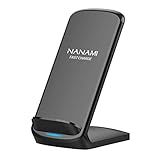
- [Easy Wireless Charging]: Say goodbye to tangled cords and enjoy convenient wireless charge experience by simply laying your phone on the charging stand, no more plug in/ out troubles (Supports most phone cases not thicker than 5mm such as armor case, rubber case, hybrid case, plastic/TPU/PC cases.Please remove all metal and magnetic attachment or credit cards before placing your phone.)
- [Wide Compatibility]: 15W for LG G8/G7/V30 etc; 10W fast charging for Samsung S26/S25/S24/S23/S22 Ultra/S21 Plus/S20/S20 fe/S10/S9/Note 20/20Ultra/10/10+/9/8/5; 7.5W for iPhone 18 Pro/18 Pro Max/17/17 Air/17 Pro/17 Pro Max/16/16 Plus/16 Pro/16 Pro Max/15/15Plus/15 Pro/15 Pro Max/14/14Plus/14 Pro/14 Pro Max/13/13 mini/13 Pro/13 Pro Max/12/12 Pro/12 Pro Max/11/11 Pro/11 Pro Max/SE 2/XS/XS Max/XR/X/8 Plus (Note: Requires a 18w wall charger to quick charge,NOT Incl).
- [Dual Viewing Angles]: 2-coil wireless pad charges your phone vertically or horizontally for the most ideal view and support when watching videos, listening to music, playing games, and more, perfect accessory for your phone at any places like office, bedroom, living, etc. NOTE: For iPhone 12 mini, the built-in battery is designed in the lower right corner. When it's charged vertically, please increase the height of iPhone 12 mini by 5mm on the stand for better charging experience.
- [Ultimate Safety Assurance]: Features internal safeguards against overcharge, overcurrent, overvoltage, and overheat, we ensure ultimate safety for your smartphone, anti-slip bottom silicone rim and raised support give extra stability for any desk surface.
- [No Wires, No Beeps, No Lights]: Sleep-friendly, no more tangled up wires, beeping sounds and annoying lights with this upgraded fast wireless charger! Its LED indicator will automatically shut off after 10 seconds for your sweet sleep.
- Unplug the Fi Base.
- Press and hold the small reset button on the back of the base near the micro-USB port.
- While continuing to hold the button, reconnect the base to a working outlet.
- Keep holding the button for five more seconds.
- Release the button when the base shows a flashing yellow light, which indicates that the base has been reset.
Fi documents this procedure in its Series 3 Base reset instructions. The procedure is not universal across all Fi generations.
How do I reset a Series 3 or Series 3+ tracker?
A Series 3 or Series 3+ tracker reset must be performed while the tracker is on a powered base. A reset will not correct a wrong-generation base or a failed outlet, so complete those checks first.
- Plug in the charging base.
- Place the tracker on the base and confirm that the base light turns blue.
- Hold the button on the base for five seconds.
- Confirm that the base light turns red and the tracker flashes green; those signals indicate that the reset occurred.
Fi provides separate reset procedures for Series 2 and Fi Mini devices, so do not apply the Series 3 procedure to every Fi tracker. Use Fi’s device-specific reset instructions when the tracker is a different generation.
What is different about a Series 1 or Series 2 base reset?
Fi’s documented older-base power-cycle procedure is simpler: unplug a Series 1 or Series 2 base for one minute, then plug it back in. Do not use the Series 3 five-second rear-button procedure unless the base and tracker are the Series 3 generation covered by that procedure.
Should I replace the Fi Base, cable, or adapter?
Replace only the part isolated by the troubleshooting tests. A cable or adapter is the likely purchase when the base works with a known-good replacement, while a replacement base becomes reasonable when the outlet, cable, and adapter work but the original base still will not power or dock the tracker.
Also popular on Amazon

- From INIU--the SAFE Fast Charge Pro: Experience the safest charging with over 38 million global users. At INIU, we use only the highest-grade materials, so we do have the confidence to provide an industry-leading 3-Year iNiu Care.
- Save Up to 45 mins via Next-Gen 15W: Embrace INIU 15W speed-boosting charging with our all-new AirFuel tech - incredibly knocks off at least 45 minutes of your waiting time.
- No More Annoying Lights: Features the first-seen self-adaptive LED indicator to bright in the day and dim in the dark. So you’ll stay in the know yet without undesirable lights to disturb your sleep.
- 4 Upgraded Charging Modes: A high-efficiency chip provides 15W fast charge for LG, 10W fast charge for Samsung Galaxy, 7.5W fast charge for iPhone, and 5W standard charge for any other devices.
- Exclusive NTC Temp°Guard Battery Protection: It controls temp in real-time smartly and silently via the exceptional cutting-edge NTC Temp°Guard, to protect your phone battery against overheating and damage.
| Observed result | Most sensible next step | What not to assume |
|---|---|---|
| Base works with another cable | Replace the USB Type-A to micro-USB cable. | The tracker is not necessarily defective. |
| Base works with another adapter | Replace the adapter with a compatible 5V, at-least-1A adapter. | A higher wattage alone will not repair failed hardware. |
| Base has power but the tracker is not seated | Redock the tracker in the recessed top area and check orientation. | Do not order a new base before correcting the dock position. |
| Series 2 tracker is being tested on a Series 3 Base | Use the correct Series 2-compatible Fi Base. | A Series 3 Base is not backward-compatible with Series 2. |
| Series 3 or 3+ base remains abnormal after testing and reset | Contact Fi Customer Experience or check warranty eligibility. | Do not repeatedly reset a base that still has abnormal lights. |
If the original base has failed after the compatibility and power checks, a replacement Fi charging base may be the appropriate direct replacement. Check the listed generation carefully: a Series 3 Base supports Series 3 and Series 3+, but it cannot charge Series 2. A replacement base is not the right purchase for Fi Mini or Fi Ultra, which use USB-C.
Independent reader supportYour contribution helps us test, update, and keep practical guides available for everyone.When should I contact Fi support or use the warranty?
Contact Fi Customer Experience when the base still shows an abnormal light, remains offline, or does not light when the tracker is correctly docked and the power path has passed testing. Fi’s troubleshooting material lists phone support at 1-888-4-Fi-DOGS and support chat.
Fi’s one-year hardware warranty may cover a defective Fi Charging Base as an associated physical accessory when the product was purchased from Fi or an authorized distributor or reseller on or after September 29, 2025. Eligibility depends on the active-membership requirement, proof of purchase, purchase channel, and the policy’s conditions and exclusions. The warranty excludes consumable batteries and certain accidental damage, misuse, improper power supply, and unauthorized service. Review the Fi one-year product warranty before paying for a replacement.
Windows Errors? Fix Them Before They Spread
Repair common Windows errors and clear accumulated junk for a smoother, more stable PC - no reinstall needed.Free scan · no reinstallCrashes, No Sound, or Screen Glitches?
Random freezes, missing sound and display glitches usually trace back to one bad driver. Find and replace yours safely.Free scan · under a minuteDo not assume that a non-charging tracker needs a new battery. A charging failure can originate with the wrong base generation, dock position, outlet, adapter, cable, base, or tracker, and the warranty’s battery exclusion does not diagnose the cause of a particular failure.
Quick checklist for a Fi collar that is not charging
- Identify the tracker as Series 1, Series 2, Series 3, Series 3+, Fi Mini, or Fi Ultra.
- Use a compatible Fi Base for Series 2, Series 3, and Series 3+; use USB-C for Fi Mini and Fi Ultra.
- Never use a Series 3 Base for a Series 2 tracker.
- Place a Series tracker in the recessed charging area on the top of the powered base.
- Try another outlet, a known-good USB Type-A to micro-USB cable, and a compatible 5V, at-least-1A adapter.
- Interpret the lights before resetting: static blue base, pulsing blue tracker, and solid blue tracker are expected Series 3 charging signals.
- Reset the correct generation’s base or tracker only after the power and docking checks.
- Contact Fi if abnormal lights or no charging remain after troubleshooting, and check warranty eligibility before buying hardware.
Information checked against Fi support documentation dated April–July 2026. Fi’s support instructions, product availability, and marketplace listings can change.
Also popular on Amazon

- 【Wireless Charger】Hopopower 15W Wireless Charger is compatible with iPhone 16/16e/16 Pro/16 Pro Max/15/15 Pro/15 Pro Max/14/14 Pro/14 Pro Max/13/13 Pro Max/12/12 Pro Max/11/11 Pro/11 Pro Max/XS/XS Max/XR/X/8/8 Plus, compatible with Samsung Galaxy S25/S24/S23/S22/S21/S20/S10/S10 Plus/S10 Edge/S9/S9 Plus/10 Plus, compatible with Samsung Galaxy Note 20/Note10/Note 9/NOTE 8/S8 Plus/S8/S7/S7 Edge/S6/S6 Edge, compatible with LG V30/V30+/G6 and all other Qi-enabled devices.
Frequently Asked Questions
Can I charge a Fi Series 2 collar on a Series 3 Base?
Fi Series 2, Series 3, and Series 3+ trackers use a compatible Fi Base. Fi Mini and Fi Ultra use USB-C and cannot charge on a Fi Base. A Series 2 tracker cannot charge on a Series 3 Base, although Series 3 and Series 3+ trackers can use a Series 3 Base.
What cable does a Fi charging base use?
Use a standard USB Type-A to micro-USB cable for a compatible Fi Base. Fi specifies a 5V adapter rated at least 1A, equivalent to 5W or more. Fi Mini and Fi Ultra instead use USB-C.
The Tool Desk
Outbyte PC Repair FREERepair Windows errors before they cause bigger problemsFix Now →Outbyte Driver Updater FREEScan for outdated or missing drivers - takes under a minuteDriver Scan →How do I know if my Fi collar is fully charged?
For a Series 3 Base, static blue indicates that the tracker is docked and charging, pulsing blue on the tracker indicates active charging, and solid blue on the tracker indicates a full charge. Fi says charging from 0% to 100% typically takes around 3 hours.
Does Fi’s warranty cover a charging base that stops working?
A Fi product purchased from Fi or an authorized distributor or reseller on or after September 29, 2025 may qualify for the one-year hardware warranty, subject to eligibility requirements and exclusions. Contact Fi Customer Experience if troubleshooting does not restore charging.
The Bottom Line
Most Fi charging failures can be narrowed down without immediately replacing the collar: confirm the generation, use the correct base or USB-C method, seat the tracker correctly, test the outlet/cable/adapter, and then perform the generation-specific reset. If a compatible, powered base still will not charge the tracker, contact Fi and check warranty eligibility before purchasing replacement hardware.





Leave a Reply