
Quick wins for a faster PC:
Clear out junk files and repair common Windows errorsFree Scan →Scan for outdated or missing drivers - takes under a minuteDriver Scan →Repair Windows errors before they cause bigger problemsFix Now →Most Litter-Robot 4 problems can be narrowed down by the light-bar pattern, the Whisker app notification, litter level, and how the globe, bonnet, drawer, and liner are seated. Before taking anything apart, photograph or record the light pattern and check the app. Then unplug the unit before removing the bonnet or globe.
Do not bypass the bonnet, cat-detection, or anti-pinch systems, and keep cats away while you inspect the machine. If the same error returns after the official checks below, stop repeatedly cycling the unit and contact Whisker with the light pattern, app message, serial number, firmware status, and a description of what changed.
As an Amazon Associate I earn from qualifying purchases.
Most Litter-Robot 4 problems can be narrowed down by the light-bar pattern, the Whisker app notification, litter level, and how the globe, bonnet, drawer, and liner are seated. Before taking anything apart, photograph or record the light pattern and check the app. Then unplug the unit before removing the bonnet or globe.
The Tool Desk
Outbyte PC Repair FREEClear out junk files and repair common Windows errorsFree Scan →Outbyte Driver Updater FREEScan for outdated or missing drivers - takes under a minuteDriver Scan →Do not bypass the bonnet, cat-detection, or anti-pinch systems, and keep cats away while you inspect the machine. If the same error returns after the official checks below, stop repeatedly cycling the unit and contact Whisker with the light pattern, app message, serial number, firmware status, and a description of what changed.
#1 Best Overall

- Superior Pet Safety Protection:Built-in infrared motion sensors instantly halt the cleaning cycle once your pet is nearby. The upgraded safety structure guarantees comprehensive pet safety even when operating under remote app monitoring
- Extra Large Capacity for Multi-Cat Homes 95L spacious litter drum comfortably serves multiple cats, paired with a 15L sealed waste storage compartment for long uninterrupted use. Perfect for busy families and traveling owners, compatible with most clumping and silica cat litters
- Intuitive Smart App ControlRemotely manage automatic cleaning, customize waste disposal schedules, and monitor real-time litter consumption through the dedicated app. Receive instant notifications for full waste bins; supports only 2.4GHz WiFi connection
- Leak-Proof & Eco-Friendly Reusable StructureReinforced sealed edges and detachable waste tray effectively eliminate litter spills and messes. Comes with a washable reusable liner to simplify daily maintenance, cut down disposable waste and lower long-term consumable costs
- Ultra-Quiet Night Operation ModeLow-decibel running design delivers nearly silent performance with little disturbance. Great for light sleepers and households with active nighttime cats.
What the Litter-Robot 4 light bar means
| Light pattern | Typical meaning | First action |
|---|---|---|
| Solid blue | Ready Mode | The unit is ready for normal operation. |
| Flashing blue | Waste drawer detected as full | Empty the drawer, fit a fresh liner correctly, and run a cycle. |
| Flashing yellow | Bonnet removed or not detected | Power down and reseat the bonnet and both side latches. |
| Yellow ping-pong | Anti-pinch interruption | Unplug the unit and inspect the pinch-bar and waste-chute areas. |
| Red with partial yellow | Motor obstruction or jam | Power down, remove the bonnet and globe as directed, and check for obstructions, excess litter, or a gear problem. |
| Red with partial white | Globe-position problem | Check power and firmware, reduce excess litter, then use Reset followed by Cycle. |
| Other red or partial-color patterns | May indicate cat detection, excess weight, motor trouble, or globe position | Use the app notification and the current manual to identify the exact condition. |
These patterns are not always one-error/one-cause codes. Firmware and operating conditions can affect how drawer sensing, SmartScale, cycle recovery, excess-weight handling, and connectivity behave. Treat the light as a starting point, not proof that a particular part has failed.
The first five-minute troubleshooting checklist
- Record the symptom. Take a photo or video of the light bar and note whether the globe stopped at the beginning, middle, or end of a cycle.
- Read the Whisker app. Check whether the robot is online, read the exact notification, and look for a firmware update.
- Check litter height. Litter must remain below the raised MAX line. If the issue began after adding litter, remove the excess before doing anything more complicated.
- Inspect the setup. Make sure the waste drawer, liner, bonnet, and globe are fully seated. Look for litter, clumps, hair, or debris around the chute, sensors, seal strip, gear area, and pinch-bar area.
- Run one controlled test. Where the official procedure calls for it, short-press Reset and then short-press Cycle. If the machine completes the cycle and returns to solid blue, the original problem may have been a temporary position or cycle-speed issue.
Safety rule: unplug the Litter-Robot 4 before removing its bonnet or globe. Never defeat an anti-pinch, cat-detection, or bonnet sensor to make the machine run.
Flashing yellow: the bonnet is removed
A flashing yellow bar means the Litter-Robot 4 believes the bonnet is removed. Turn the unit off, remove power, and check the following:
PC Slower Than It Used to Be?
A free scan shows the junk files, broken settings and background clutter dragging Windows down - then fixes them in one click.Free scan · Windows 10 & 11Outdated Drivers Are Slowing You Down
One free scan finds every outdated or missing driver and matches the right update for your exact hardware.Free scan · exact hardware match- Both side latches are engaged.
- The bonnet is sitting flush rather than tilted or lifted.
- No litter or debris is trapped along the bonnet edge or latch areas.
- The globe and other components are seated well enough that the bonnet can close completely.
After reseating the bonnet, reconnect power and observe the light. If the flashing-yellow indication repeatedly returns even though the bonnet is correctly installed, stop cycling the machine. Do not improvise an electrical bypass; contact Whisker support.
Yellow ping-pong: anti-pinch interruption
A yellow ping-pong pattern indicates that the anti-pinch safety feature interrupted a cycle. Unplug the unit before inspection and keep your cat away from the machine.
Inspect the dual pinch-bar area and the waste-drawer chute for compacted litter or clumps. Carefully clear any buildup, reinstall the removed components, and test the unit once. The anti-pinch system is a safety feature, not a nuisance sensor to disable. If the pattern returns after the area is clean and the components are correctly seated, contact Whisker rather than continuing to force cycles.
Red with partial yellow: jam, motor obstruction, or overload
A red light bar with partial yellow flashing is associated with a motor obstruction or jamming condition. Common possibilities include an overfilled globe, a clump in the wrong location, debris near the gear or motor, or a globe that is not seated correctly.
Free tools Windows power users keep installed
One-click scans. No signup required.
- Turn the unit off and unplug it.
- Remove the bonnet and globe according to the official Litter-Robot 4 procedure.
- Inspect the globe, gear area, and motor path for litter, clumps, hair, or another obstruction.
- Check that litter is below the raised MAX line.
- Reinstall the globe and bonnet correctly.
- Run a controlled test cycle.
Do not keep pressing Cycle when the globe is jammed. Repeated attempts can make it harder to identify whether the original cause was excess litter, a misplaced clump, poor seating, or a mechanical fault. If the globe cannot complete a cycle after the documented checks, contact Whisker.
Red with partial white: globe-position error
For a globe-position error, use this order rather than immediately buying a replacement base or motor:
- Confirm that the machine has power and that the app can connect to it.
- Check the app for a firmware update and install it if available.
- Confirm that litter is below the raised MAX line.
- If you recently added litter, remove the excess.
- Short-press Reset, then short-press Cycle.
- Watch whether the globe returns to its home position and the light bar becomes blue.
The robot may continue operating in Automatic Mode while this error is displayed, but a recurring position error needs further attention. Depending on the diagnosis, Whisker identifies the globe, motor, or base as possible repair parts. That does not mean all three parts need replacing; obtain a diagnosis first, especially if the unit is under warranty.
Flashing blue or a waste drawer that falsely reads full
Flashing blue generally means the machine believes the waste drawer is full. If the drawer visibly has room, troubleshoot it as a waste-gauge or drawer-fit problem rather than assuming the base has failed.
- Empty the drawer completely.
- Install a fresh liner without bunching it into the drawer or allowing it to interfere with the interior.
- Push the drawer fully into the base.
- Run a cycle and compare the physical drawer level with the app reading.
- Clean the curtain sensors and inspect the surrounding bezel.
- Power down and check the bonnet, globe, and seal strip for litter, hair, or debris.
- Confirm that the robot’s firmware is current.
- Recalibrate only by following Whisker’s current instructions for your firmware and model revision.
Litter-Robot 4 uses laser and weight-sensor technology to estimate litter and waste information. Translucent or white litter, including some crystal litters, can reduce the accuracy of level and drawer-full readings. If the problem began after changing litter, try a recommended clay-clumping litter before concluding that the sensing hardware has failed.
Rank #2
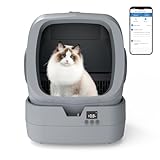
- 😸Perfect for medium-sized cats and kittens: This automatic cat litter box is ideal for medium-sized cats and kittens, making it a great choice for households with one or more cats. Product size: 19.84*18.23*22.44inch
- 🔕Quiet and Peaceful Operation: With cleaning noise below 35 dB—comparable to a whisper or a refrigerator hum—this litter box ensures a tranquil environment for your home and pets.
- 📱Smart App Integration: Seamlessly connect the litter box to the app using 2.4GHz Wi-Fi or Bluetooth. Monitor your cat's health in real-time and access detailed usage history, including weight, time spent, and frequency of use.
- 💦Easy to Maintain: The litter box’s intuitive design makes cleaning straightforward. No complicated steps—just lift the drum for quick and efficient cleaning to keep your pet’s space hygienic. The drum part is fully washable with water.
- 🔧Requires assembly: This product takes approximately 30 minutes to assemble. We also offer a version that requires no assembly in our store. To ensure smooth installation, please watch the assembly video and read the user manual in advance. After powering on and adding new cat litter, please run the "Level" mode.
Litter type, overfilling, and poor cycle performance
Litter-Robot 4 is designed for clay-clumping litter. Strictly absorbent, non-clumping, loose-clumping, newspaper-based, and absorbent wood-pellet litters do not sift correctly through the system. Some plant-based or alternative litters may also fail to filter properly.
Keep the litter below the raised MAX line, not merely below the top of the visible pile. Overfilling adds weight and can slow the globe, contributing to motor, overload, or globe-position faults. If a problem appeared immediately after topping up the litter, remove the excess and run one controlled cycle before considering parts.
Inaccurate cat weights or SmartScale readings
Start by removing environmental causes of bad weight readings:
What’s actually slowing this PC down?
Pick the symptom - the matching free tool is one click away.
- Move the unit away from walls, furniture, or other objects it may touch.
- Place the base on a stable surface.
- Make sure the waste drawer is fully inserted.
- Allow the machine to settle after moving it or changing the litter amount.
- Check that litter is not over the MAX line.
Litter-Robot 4 can operate on carpet or uneven flooring, but SmartScale is most accurate on a firm, level surface. If inaccurate weights persist specifically because the unit sits on carpet or uneven flooring, a model-specific Carpet Tray may improve the weighing conditions. It is an accessory, not a requirement for basic operation, and it will not repair a motor, sensor, or Wi-Fi fault.
Wi-Fi, app, and firmware troubleshooting
Litter-Robot 4 requires a 2.4 GHz Wi-Fi signal; a 5 GHz-only network is not supported. It supports IPv4 or IPv6 addressing. If the robot is offline, troubleshoot connectivity before diagnosing a motor or sensor failure.
- Confirm that your router broadcasts a compatible 2.4 GHz network.
- Check whether the phone running the Whisker app is connected to the intended home network.
- Restart the router and allow it to come fully back online.
- Check the app’s onboarding or connection status.
- Install any available robot firmware update.
- After reconnecting, check whether the error notification remains and whether the robot can complete a cycle.
Do not rely on an old firmware number presented in an older troubleshooting article. Whisker’s release history shows that updates have changed drawer sensing, SmartScale behavior, excess-weight handling, cycle recovery, and Wi-Fi connectivity. Use the version currently offered in the app for your robot.
If the Whisker app itself is malfunctioning on a Windows or Mac computer, troubleshoot that computer and its network separately. Computer repair software cannot repair the Litter-Robot’s motor, globe, sensors, or app connection, so it should not be treated as a solution to a robot hardware error.
Odor problems: clean the system before replacing parts
Litter-Robot 4 controls odor with a sealed waste drawer and carbon filter. Increasing odor usually calls for maintenance rather than a new base.
- Empty the waste drawer before it becomes excessively full.
- Check that the liner is not leaking, torn, or bunched.
- Confirm that the carbon filter is installed and replace it when needed.
- Clean the globe and surrounding areas according to Whisker’s cleaning guidance.
- Look for waste or litter around the drawer, seal strip, chute, or exterior of the globe.
For routine replacement, Litter-Robot 4 carbon filters are the relevant accessory. They address odor filtration only; a filter will not fix a globe-position, motor, waste-gauge, or Wi-Fi error. Product compatibility, price, stock, and warranty should be confirmed before purchase. Disclosure: Animalso may earn a commission from qualifying purchases made through some product links.
When accessories help—and when they do not
| Accessory | Use it when | Do not expect it to fix |
|---|---|---|
| Carbon filters | Odor increases or the existing filter needs replacement. | Motor, sensor, globe-position, or Wi-Fi faults. |
| Waste drawer liners | The liner is damaged, leaking, or incorrectly fitted during a drawer-full diagnosis. | A failed sensor or a mechanical obstruction. |
| Carpet Tray | SmartScale readings are inaccurate on carpet or uneven flooring. | Basic operation problems unrelated to flooring or a damaged base. |
| LitterHopper | You want measured automatic litter dispensing because the problem is frequent manual refilling. | Low-litter alerts caused by bad sensing, a jam, excess litter, or a motor fault. |
The LitterHopper requires current firmware, an optimal-litter calibration, and recommended litter for best results. It dispenses measured amounts; it is not a repair for a globe or sensor problem.
Independent reader supportYour contribution helps us test, update, and keep practical guides available for everyone.When to clean, reset, recalibrate, contact Whisker, or replace a part
Return to normal use when
The fault disappears after removing excess litter, clearing a documented obstruction, reseating a component, updating firmware, or completing one controlled test cycle. Monitor the next several cycles rather than immediately replacing a part.
Clean and retest when
You find litter, clumps, hair, or debris around a sensor, drawer, seal strip, chute, gear area, or pinch bar. Reassemble carefully and test once after cleaning.
Rank #3
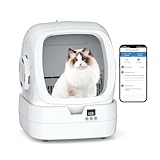
- 😸Ideal for small to medium cats: Designed to accommodate kittens and medium-sized cats, this litter box is suitable for pets weighing between 3.5 lb and 15 lb. A great option for single or multiple cat homes.
- 🔕Low-Noise Performance: With operating sound kept below 35 dB—similar to a soft whisper or gentle appliance hum—it won’t disturb your daily life or your pet’s rest.
- 📱App Connectivity: Connect quickly via 2.4GHz Wi-Fi or Bluetooth and stay informed with real-time monitoring. The app provides detailed data, including your cat’s weight, visit duration, and frequency.
- 💦Simple Cleaning Process: The user-friendly structure allows for easy maintenance. Just remove the drum for quick cleaning, and the washable design ensures better hygiene.
- 🔧Assembly Required: Setup takes about 30 minutes. For best results, please review the instruction manual and watch the installation video before starting.
Recalibrate when
The physical drawer or cat weight is consistently different from the app reading after checking the liner, drawer placement, sensors, flooring, litter type, and firmware. Follow the current Whisker instructions for the robot’s firmware and model revision rather than using an old calibration sequence.
Contact Whisker when
- A bonnet or anti-pinch error returns after the relevant area is clean and correctly assembled.
- The globe cannot complete a cycle after the official obstruction and fill-level checks.
- A globe-position error persists after updating, reducing litter, resetting, and cycling.
- You suspect a motor, base, globe, sensor, or electrical fault.
- You are unsure whether a component is safe to remove.
Give support the serial number, a photo or video of the light pattern, the exact app notification, current firmware status, litter type and fill level, and the steps already attempted. This is more useful than simply reporting that the robot is “not working.”
Review the warranty before buying a replacement
Before purchasing a globe, motor, base, drawer, or other expensive component, check whether the robot is covered. Whisker’s support documentation indicates that covered customers may access replacement parts through their account. For out-of-warranty units, compare the price of the officially recommended replacement part with the cost of a replacement machine. Do not assume a third-party part is compatible merely because it looks similar.
Do these 3 things before closing this tab:
1Repair Windows errors before they cause bigger problems2Fix the driver behind crashes, sound loss and screen glitches3Clear out junk files and repair common Windows errorsFinal escalation checklist
- Light pattern recorded
- Whisker app notification read
- Firmware checked
- Litter below the raised MAX line
- Correct clay-clumping litter used
- Drawer, liner, bonnet, and globe seated correctly
- Chute, sensors, seal strip, gear area, and pinch bars inspected safely
- Only one controlled Reset/Cycle test attempted where appropriate
- Warranty checked before purchasing parts
- Whisker contacted if the documented checks did not resolve the fault
The safest repair strategy is symptom-led: identify the light and app message, remove simple causes such as excess litter or poor seating, perform the official inspection, and escalate persistent errors instead of repeatedly forcing the machine to cycle.
Frequently Asked Questions
Why is my Litter-Robot 4 flashing blue when the drawer is not full?
A flashing blue light generally means the Litter-Robot 4 believes the waste drawer is full. Empty the drawer, fit a fresh liner without bunching it, reinsert the drawer fully, and run a cycle. If the drawer is not full, clean the curtain sensors, check the bezel and surrounding components, update firmware, and recalibrate only using Whisker’s current instructions.
What does a flashing yellow light mean on Litter-Robot 4?
A flashing yellow bar means the robot believes the bonnet is removed. Power down, check that both side latches are engaged, and clear debris that prevents a flush fit. If the warning returns with the bonnet correctly seated, do not bypass the sensor; contact Whisker.
How do I fix the yellow ping-pong light?
A yellow ping-pong pattern indicates an anti-pinch interruption. Unplug the unit, inspect the dual pinch-bar area and waste-drawer chute for litter or clumps, clean and reassemble the machine, then test it once. Never disable the anti-pinch feature.
How much litter should be in Litter-Robot 4?
Keep litter below the raised MAX line. Overfilling can slow the globe and contribute to overload, motor, or globe-position errors. If the problem began after adding litter, remove the excess and run one controlled cycle.
What litter works best in Litter-Robot 4?
Use clay-clumping litter. Strictly absorbent, non-clumping, loose-clumping, newspaper-based, and absorbent wood-pellet litters do not sift properly, and some alternative or plant-based litters may also perform poorly.
Why will my Litter-Robot 4 not connect to Wi-Fi?
Litter-Robot 4 requires 2.4 GHz Wi-Fi; a 5 GHz-only network is not supported. Check the router band, phone connection, app onboarding status, and available firmware updates before diagnosing a motor or sensor fault.
Does Litter-Robot 4 need a Carpet Tray?
A Carpet Tray may improve SmartScale accuracy when the robot is on carpet or uneven flooring. First ensure the base is stable, away from walls or objects, and has a fully inserted drawer. The tray is not required for basic operation.
Recommended Free Tools
The Bottom Line
Bottom line: Photograph the light pattern, check the Whisker app and firmware, keep litter below the raised MAX line, and unplug the Litter-Robot 4 before inspecting the bonnet or globe. Clean and reseat components before buying parts, never bypass safety systems, and contact Whisker when an error persists after the documented checks.
Quick Recap
Product prices and availability are accurate as of the date/time indicated and are subject to change. Any price and availability information displayed on Amazon at the time of purchase will apply.



Leave a Reply